Flow AI Video Generator

Turn a prompt or an image into a short AI video. Choose Veo 3.1 Free to generate without credits or sign-up.

0/2000
25credits

Video Inspiration

The video workspace

What is Flow AI Video Generator?

Flow AI Video Generator turns text prompts or images into short AI videos. Start from a written scene, or upload a still and direct how it should move. Choose a model and adjust its supported settings in your browser.

Use Flow AI as a video maker for focused single shots, with control over the duration, aspect ratio and resolution supported by your chosen model. Review the credit cost before generating, then follow the task and download your video in a creation session.

Five ways to direct a shot

Ways to Create Videos with Flow AI

Start with text, an image, or visual references, then choose a model that supports your workflow.

01 / Start with words

Text to Video

Describe a scene, the subject’s action, and a camera movement. Add lighting or mood to guide the shot, keeping the idea focused on one clear moment rather than several unrelated scenes.

Choose a model and its supported settings, then review the result in your creation session. Clip length, resolution, and credit cost vary by model.

A handcrafted orange canvas airship hovering in soft cloud mist, with visible rope rigging and a wooden gondola.
Prompt

Follow the canvas airship through soft mist.

02 / Start with a still

Image to Video

Start with a product photo or scene image, then describe how it should move. A gentle camera push, a small turn, or subtle background motion is a useful first direction.

A portrait with a slight head turn is another useful first test: it shows whether the model keeps the face consistent while the background moves.

Each clip is a new interpretation, so fine details may change. Choose a compatible image format and review the complete result before using it.

An amber perfume bottle on textured travertine against a softly shaded ivory studio backdrop.
Prompt

Orbit Perfume bottle reference cropped from the studio scene slowly. Keep the bottle in focus.

03 / Direct the beginning and end

First and Last Frames

Use two related images to guide where a shot begins and ends. Move from a wide product view to a close-up, or connect two compositions with a plausible camera movement.

First and last frame controls are available only for supported models and modes. Keep subjects and styles consistent; the movement between frames is generated, not precisely keyframed.

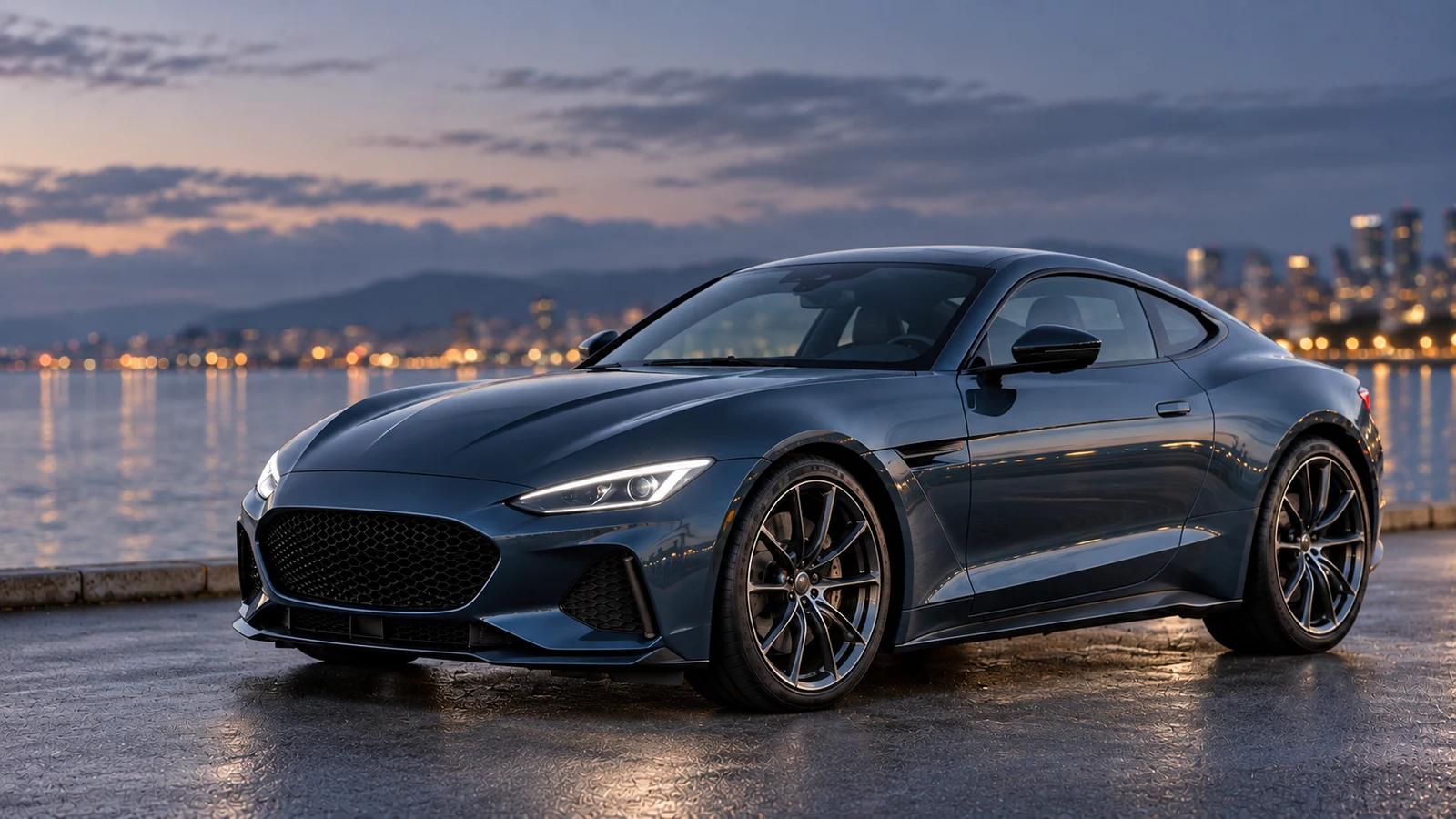
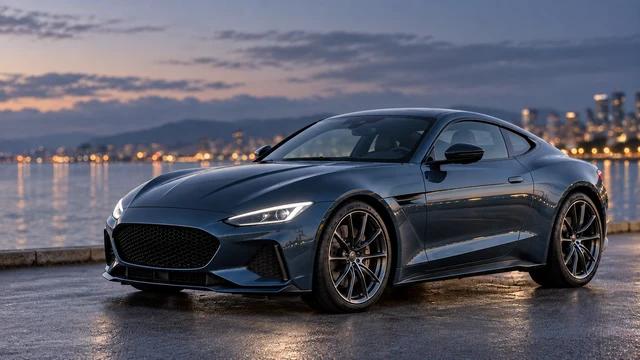
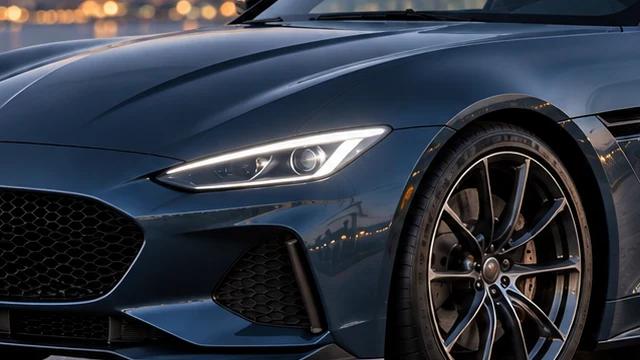
A close full view of a steel-blue sports coupe at a quiet waterfront at dusk, paired with full-car and headlight frame examples.
First frame example: a complete view of the steel-blue coupe at duskFirst frame
Last frame example: a close-up of the same car’s front headlightLast frame
Prompt

Push in from the car to its headlight.

04 / Add visual context

Multiple References

Give a compatible model more visual context with references for a subject, setting, or motion. Prepare your source material in the dedicated multi-reference workspace before directing the shot.

Reference counts and accepted image or video formats vary by model. Use material you have rights to and check continuity afterward; exact identity and frame-by-frame preservation are not guaranteed.

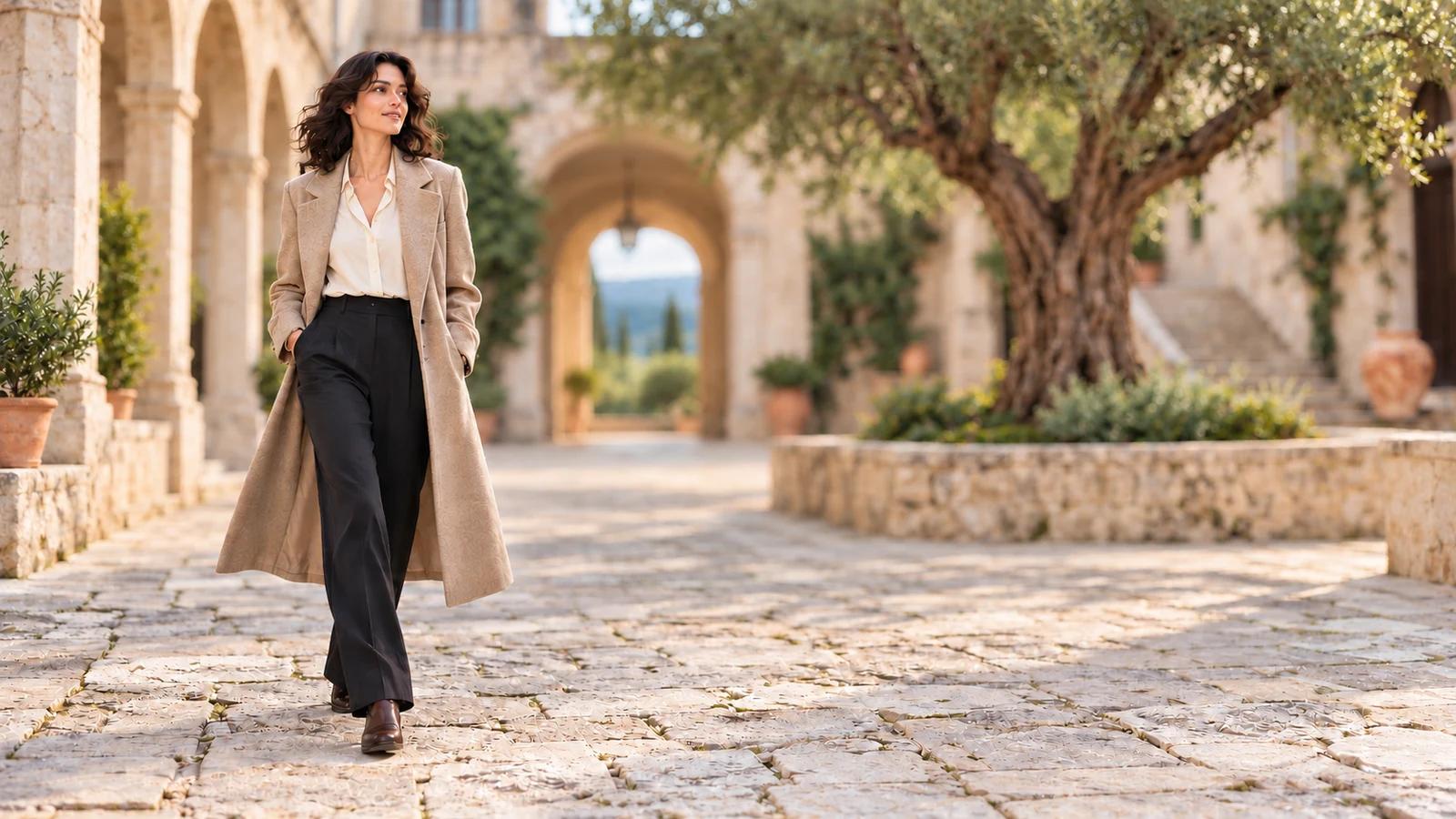
A woman in a beige coat in crisp focus against a softly receding limestone courtyard and olive tree.
Prompt

Combine Person reference cropped from the courtyard scene + Beige coat reference cropped from the courtyard scene + Stone courtyard reference cropped from the same scene. Track her walk.

05 / Set the output

Duration, Format and Resolution

Match the output to your destination: a wide presentation, a vertical social post, or a short product clip. Choose a duration that suits the action and a resolution that fits your delivery needs.

Available combinations depend on the model. Google Omni supports up to 4K in compatible modes; check the composer’s settings and updated credit quote before generating.

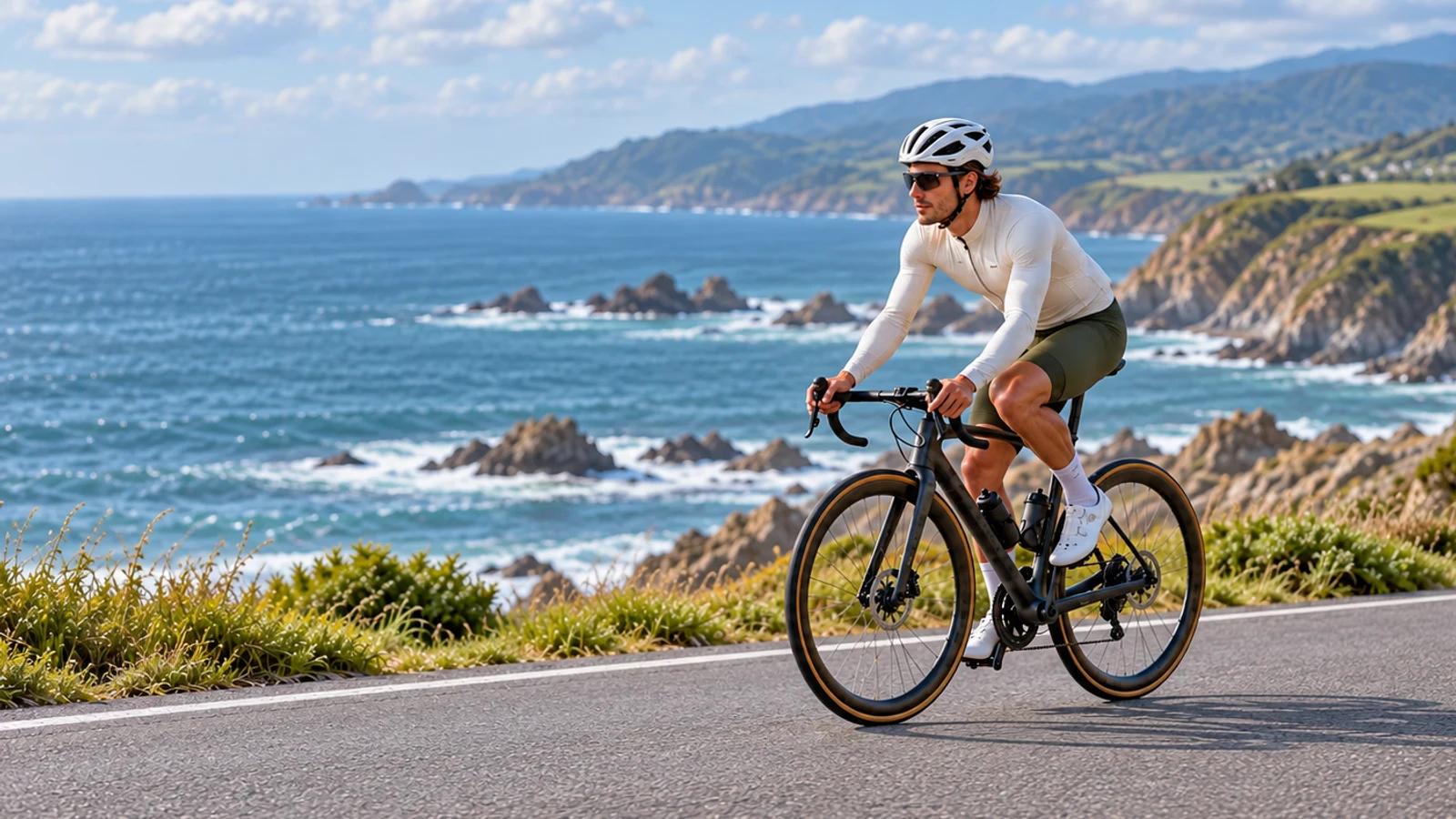
A complete cyclist and road bicycle in a closer composition beside a softly detailed blue-green coast.
Example settings · Seedance 2.0
  • 15s
  • 16:9
  • 1080p
Prompt

Follow the cyclist along the coast.

From idea to review

How to Use Flow AI Video Generator

The composer is where you prepare and submit; the creation session is where you follow and review the task.

  1. 01

    Describe or upload

    Write one focused scene and action. Add an image only when the selected model and creation mode accept it. For advanced references, use the dedicated workflow.

  2. 02

    Choose a model and settings

    Compare compatible duration, ratio, resolution, and other controls. Review the credit quote after every model or setting change.

  3. 03

    Generate your video

    Submit the task, then follow its progress in the creation session. Models that need paid access are marked in the composer before you submit.

  4. 04

    Review and download

    After submission, follow the task in its creation session. Watch the finished clip, check the details, then download it.

A connected video workflow

Why Create Videos with Flow AI

One flow from input to model settings, credit estimate, and a creation session.

2

Two starting points

Describe a scene with text or begin with an image in a compatible video workflow.

4K

Up to 4K

Google Omni supports up to 4K output in supported modes; other models differ.

Multiple

Multiple models

Compare models in the catalog rather than treating one set of controls as universal.

Before

Credit estimate first

See the current quote before choosing to submit a generation.

One clear creation flow

Prepare your prompt, submit, then follow the task in its creation session. Review your results and sign in to save useful versions to your account.

Settings that follow the model

Input options, duration, aspect ratio and resolution change with the selected model. The composer shows the compatible controls and updates the credit quote as you adjust them.

Room to compare and revise

Try a focused first shot, review the complete output, then make a new version with a clearer prompt or a different compatible model. To revise an existing clip, open the Flow AI video editor.

Questions before you create

Flow AI Video Generator FAQ

Answers about free AI video generation, accounts, text to video, image to video, output settings, and commercial use.

Is Flow AI Video Generator free?

Yes. Select Veo 3.1 Free in Flow AI Video Generator to create videos without paying or spending credits, within the daily allowance. Other models use credits, and some require paid access. The composer shows the credit cost before you submit.

Can I try Flow AI Video Generator without signing up?

Yes. With Veo 3.1 Free, you can generate, preview, and download videos without signing up or logging in. Sign in to save eligible results to your account or use credit-based models. Signing in does not reset your daily free allowance.

Can I download videos from Flow AI Video Generator without a watermark?

Yes. Videos generated with Veo 3.1 Free can be downloaded without a watermark, including when you use Flow AI Video Generator without an account. Watermark-free downloads from this free model do not require credits or a paid subscription.

How do I use Flow AI Video Generator for free?

Open Flow AI Video Generator and select Veo 3.1 Free. Enter a scene description for text to video, or add an image for image to video. Choose an available aspect ratio and submit your request. Keep the page open while it waits and processes, then preview and download the finished video.

Does it support both text to video and image to video?

Yes. Use Flow AI text to video to start from a written scene, or Flow AI image to video to guide a clip with an image on compatible models. Image references help direct composition and motion, while details may change. First and last frames and multiple references are available only where the selected model and mode support them.

How long can the generated videos be?

Length depends on the model and creation mode. For example, Google Omni offers 4, 6, 8 or 10 seconds. Other models and modes have different limits. Check the duration choices and updated credit quote in the composer.

What resolution and aspect ratio does it support?

Google Omni supports 720p, 1080p and 4K output in 16:9 or 9:16 in supported modes. Other models offer different combinations, and some require paid access. The composer displays compatible settings and updates the quote when you change them.

How is Flow AI Video Generator different from Google Flow?

Flow AI at flowai.im and Google Flow are separate products. Flow AI uses its own accounts, credits, models, and creation sessions; it does not provide a Google Flow account or transfer its credits. Flow AI is not affiliated with or endorsed by Google.

Can I use the generated videos commercially?

Paid-plan users may use their generated videos commercially, subject to our Terms of Service, applicable law, and the selected model’s rules. Free users may use generated videos for personal and other non-commercial purposes. Flow AI does not claim ownership of your generated videos. Copyright protection and rights to third-party material are not guaranteed, so use inputs you have permission to use.

Flow AI is an independent service and is not affiliated with or endorsed by Google. Inspiration media is not represented as a verified benchmark for a particular model.

All the Leading AI Video Models in One Place

Find the right video model for your next idea, all in one workspace.

Veo 3.1 Free
Veo 3.1 Lite
Veo 3.1 Basic
Veo 3.1 Premium
Seedance 2.5
Seedance 2.0
Seedance 2.0 Fast
Seedance 2.0 Mini
MiniMax H3
Google Omni Lite
Google Omni
HappyHorse 1.0
Kling 3.0
Wan 2.6
Grok
Kling 2.6
Wan 2.5

Make the next shot yours

Create Your First AI Video

Start with Veo 3.1 Free to generate without credits or sign-up and download without watermarks. Explore other models for more options and check their credit cost before generating.

Start creating
Flow AI Video Generator — Free, No Sign Up